When you have multiple computers on your desk, it can be very annoying to switch keyboard an mouse each time you want to do something on one of the other computers.
So, you can solve this by just using one keyboard and one mouse for multiple computers without buying a hardware switch.
Synergy is a package, available from the repository that lets you share the mouse and keyboard over a range of different computers.
When synergy is active, your keystrokes will be send to the machine where your cursor is currently positioned.
The cursor will slide from screen to screen just as if you are working on one single system with multiple screens attached.
As far as I know, it’s not possible to drag windows from one machine to another. Which would be nice.
So if you’re a programmer and you’re still searching for a useful project, then this is just your bit.
Here is how you can easily start sharing your keyboard and mouse between different computers and screens using synergy on Ubuntu:
First off, install the synergy package and the QuickSynergy packages on each machine you want to use your pointer on with the command:
sudo apt-get install quicksynergy
Note that apt will install the synergy package as it’s required to run QuickSynergy. (QuickSynergy is in fact just a gui for Synergy)
When it’s installed, you’ll find QuickSynergy under the category ‘accessories’ in the application menu.
On the server:
The server is the computer where the used keyboard and mouse are attached to.
In the Share tab fill in the names of the computers where you want your keyboard and mouse to be operational.
Do not fill in the IP address, it won’t work.
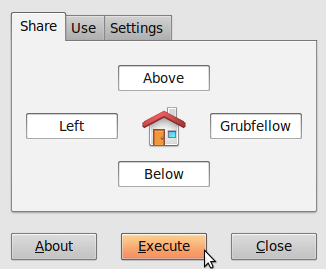
To find out the name of your computer(s), open a terminal and type:
hostname
If all the hostnames are put in the right place, start the service by clicking ‘Execute’
Note that the window becomes gray.
You can now just minimize it and let it do it’s work.
On the client:
On the Client, fire up the QuickSynergy app and go to the Use tab.
Fill in the hostname of the server.
Note that you can also enter its IP, but know that when you’re using dynamic IP adresses, you’ll have to reconfigure this each time you fire up Synergy.
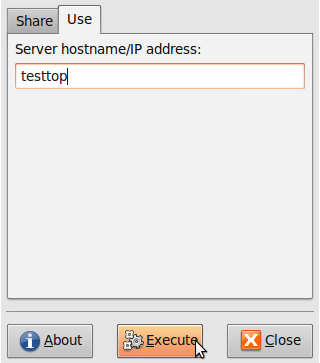
Then just hit execute and minimize the window.
Now you can remove your keyboard and mouse from this computer.
When moving the mouse outside the window to the side you’ve configured the other computers position on the server, you’ll see your pointer go ‘troug’ the space between the two computers and appear on the other screen.
Als handy to know is that the clipboard is shared.
So you can actually copy something on machine 1 and paste it on machine 2. (text that is, don’t try this with data)
Note:
Synergy uses an unencrypted TCP/IP stream on port 24800. So if you’re on a network you can’t entirely trust, don’t use it unless you encrypt it.
I would even recommend ALL users using a wifi-network to encrypt the connection.
To Encrypt the Synergy data, you can simply follow the guide on their website.
just thought i should mention that it should be…
“sudo apt-get install quicksynergy” it won’t install with capitalized letters for QuickSynergy
Opinon, you’re right. Thx for pointing it out.
I changed it.
I just did a replace all, and didn’t think about the command-line while doing so :s
Good job! It may be helpful in the process of studying ubuntu so I’ve scrape it using scrapebook(firefox addon). Can you recommend any books about ubuntu for me? yeah, I am a noob of ubuntu. 😀 thanks in advance!
Great blog I’ve actually bookmarked it for learning ubuntu. Can you recommend any books about ubuntu for me? yep, I am a beginner of ubuntu. :] thanks in advance.
I absolutely enjoyed reading this specific post. I am going to be returning to read more interesting ideas. Thanks.
Thanks Registry. I’ll try to put something interesting online once in a while 😉
When I originally commented I clicked the “Notify me when new comments are added” checkbox and now each time a comment is added I get four emails with the same comment. Is there any way you can remove me from that service? – Thanks P.S
I can’t find your name in the list of subscribers.
Is it possible you have already removed yourself, or you entered another email-address this time?