I’m living without a TV these days and thus removed the set-top box, resulting in a clock-less living room.
Therefore, I’ve connected an old display to my ‘server’ (on the left of the screen) and created a new clock:
http://youtu.be/1jiE5jkDGV4
I’m living without a TV these days and thus removed the set-top box, resulting in a clock-less living room.
Therefore, I’ve connected an old display to my ‘server’ (on the left of the screen) and created a new clock:
http://youtu.be/1jiE5jkDGV4
So, I grew tired of going trough all of my external harddisks to find whatever I’m looking for. Prébuild solutions are expensive, use obsolete technology and are limited in capabilities. That’s why I came up with my own build.
It’s not my goal to get the cheapest, but the most expandable solution, both in storage as in ways of functions.
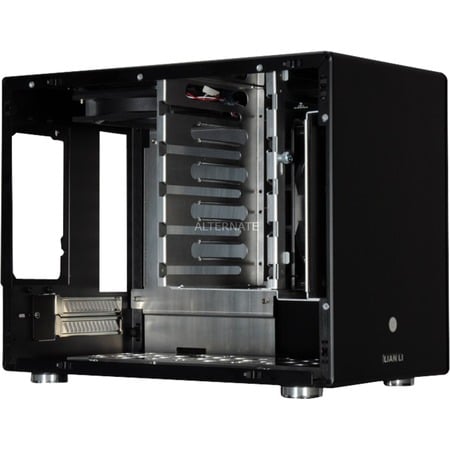
This is what I came up with:
At first, I was thinking of setting up a softraid 5 configuration.
But then I found out about ZFS for linux. So I might try this first.
I’m going to think this over a few times. Will check out other disks, other raid-solutions, an SSD as ZFS Cache etc…
The cool thing is, later, whenever I have a good TV, I can just cram some tv card in there, so I won’t even need to stream all content over the network 🙂
Sounds good? Leave your comments below 🙂
This is exactly how all their customers out there feel about NVIDIA and their support for the wonderful Linux destop.
If you have one or multiple boxes running somewhere at a remote location and you manage them trough ssh, you’re possibly familiar with the following situation.
It has been a long night.
On your desktop there are multiple terminals gaping in the dark.
During the whole night, some of these dark ships transported you to far remote playgrounds and back.
The other ones were mere destined for local hocus-pocus.
But it’s time to call it a day and go to bed.
You fire away the ‘poweroff’ command just to realize a fraction of a second later that this was the window to your homebrew webserver…
But it’s too late.
The connection is lost and the machine has no wake on lan…
Now you have to get out of your chair, find those damned pants and go all the way up to the attic to switch it back on.
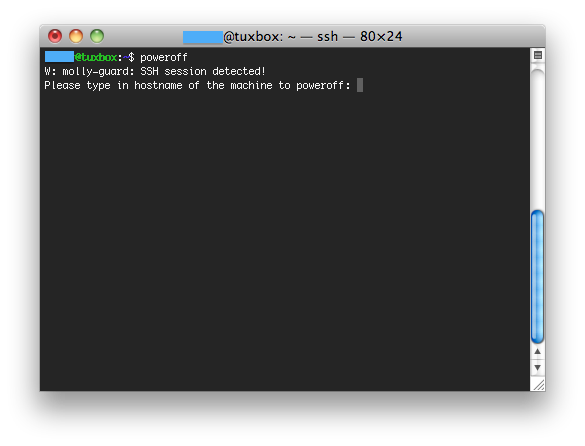
No one likes this horrible situation. So Molly-guard is here to save the day.
Molly-guard is is a bunch of scripts that capture the halt, reboot, shutdown and poweroff commands and give you a second chance.
By checking if the tty has been created by sshd, it checks whether you’re logged on from a remote machine.
If that’s the case, molly asks you the hostname of the machine you want to shut down.
If the hostname you entered does not match the hostname where Molly is running on, you’re saved 🙂
You might think this is a silly tool, but after a long time of silence, I’m back to using my home server and just saw this screen:
A little cool thing to know:
A shield to prevent tripping of some Big Red Switch by clumsy or ignorant hands. Originally used of the plexiglass covers improvised for the BRS on an IBM 4341 after a programmer’s toddler daughter (named Molly) frobbed it twice in one day. Later generalized to covers over stop/reset switches on disk drives and networking equipment. In hardware catalogues, you’ll see the much less interesting description “guarded button”.
— http://www.catb.org/~esr/jargon/html/M/molly-guard.html
Molly-guard man page from ubuntu: here
Did you notice… April Fool’s Day has passed by.
As usual, jokes were ranging from buttard-lame to über-fluffy-rainbow-unicorn mighty.
A lot from Google’s jokes this year were great, but they’re all expected and bringing no surprise at all.
I think the one below was the most funny one from them.
My all-round favorite from 2012 goes out to the IBM Linux kerel developers.
They announced a new patch that would rock your socks off…
From this patch on, Linux would no longer need a CPU.
To be honest… for a second I went: What? Crazy… but then it did hit me… in the face!
Read all about it in this article at Phronix
When done correctly, “Secure Boot” is designed to protect against malware by preventing computers from loading unauthorized binary programs when booting. In practice, this means that computers implementing it won’t boot unauthorized operating systems — including initially authorized systems that have been modified without being re-approved.
The biggest issue with the “Secure Boot” system, is that it’ll create a vendor-lockin. This has been seen with the android system as well, but it’ll be Microsft pulling the strings on this one.
Some other interesting reads on Secure Boot:
 So, It’s been a while since I’ve set up my home server to use it as a swiss army knife at home and on the road.
Now I was wondering on the system’s integrity.
First step was checking /var/log/auth.log
To do some quick’n’dirty check I’ve ran the following command
grep “Invalid user” /var/log/auth.log | less
I just found my twirssi inactive. 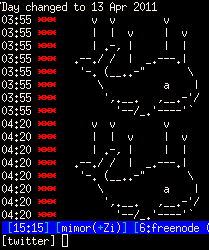
When loading the script and authenticating with oath enabled, I got the error:
-!- Irssi: Error in script twirssi:
Timestamp out of bounds
This is (most likely) the result of a wrong system date/time.
Quite easy to solve, just sync it to an NTP server.
Open a terminal and enter:
ntpdate pool.ntp.org
Try to load the script again and login.
All should be fine now.
 When you have a dual boot with Windows and Ubuntu you might experience some time travelling when rebooting to windows.
To solve this, simply boot into Ubuntu and edit the /etc/default/rcS file as sudo and change the UTC value from yes to no.
It should look like this
TMPTIME=0
SULOGIN=no
DELAYLOGIN=no
UTC=no #Set according to your system (BIOS) clock.
VERBOSE=no
EDITMOTD=yes
FSCKFIX=no
These values are being used by the scripts at /etc/rcS.d/ that get invoked during boot (even in single user mode)
To be clear, this is not an Ubuntu error. It is simply the Windows that never assumes the system-clock to be in UTC.
If you wish to adjust this in the Windows installation execute regedit and navigate to:
HKEY_LOCAL_MACHINE\SYSTEM\CurrentControlSet\Control\TimeZoneInformation
Change the RealTimeIsUniversal value to 1.
If you’re simply looking for a wach to change your hardwareclock on linux you can check my other article on Changing date and/or time on Linux.
 Say, you have a huge flv flash file you want to upload to youtube.
You’ll find yourself in trouble as there is a limit to the filesize you can upload.
Where you needed to download and install bloatware in Windows to accomplish this,
it’s super easy in Linux.
ffmpeg will do the trick.
Say you want to cut the flash movie in pieces of 10 minutes, you can do this like this:
ffmpeg -i filename.flv -ss "00:00:00" -t "00:10:00" filename_chunk.flv

ffmpeg -i filename.flv -ss "00:10:00" -t "00:20:00" filename_chunk2.flv

ffmpeg -i filename.flv -ss "00:20:00" -t "00:30:00" filename_chunk3.flv

...
Now you’re ready to upload your video’s.